lightmime
Sync Philips Hue lights with your screen on Linux.
lightmime watches what is on your screen and colours the lights of a Hue entertainment area to match it: the left of the picture on the lights to the left of the TV, the top on the lights above it. It talks to the bridge the way Hue Sync does, over the Entertainment API, so the lights follow the picture with low latency.
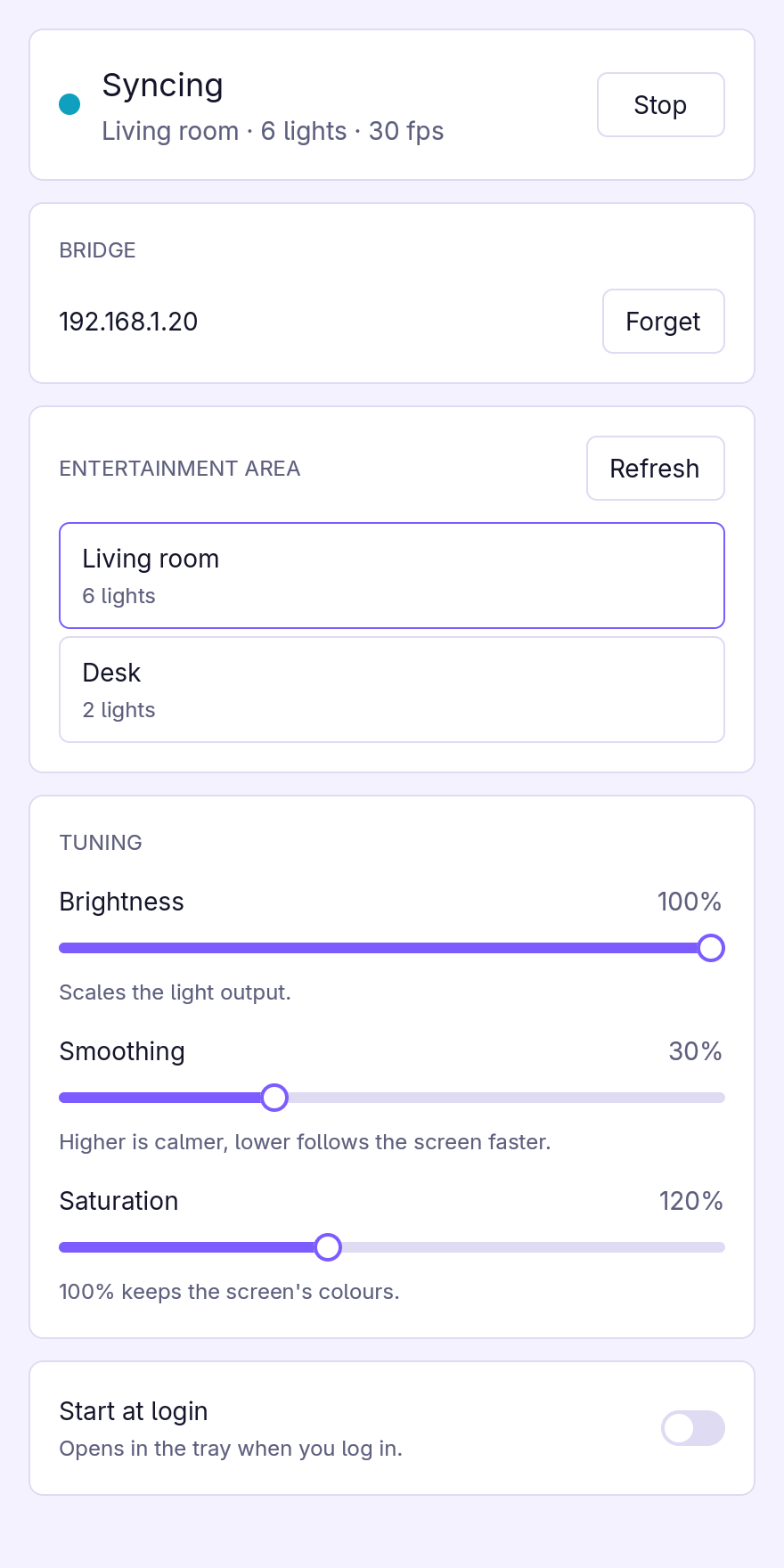
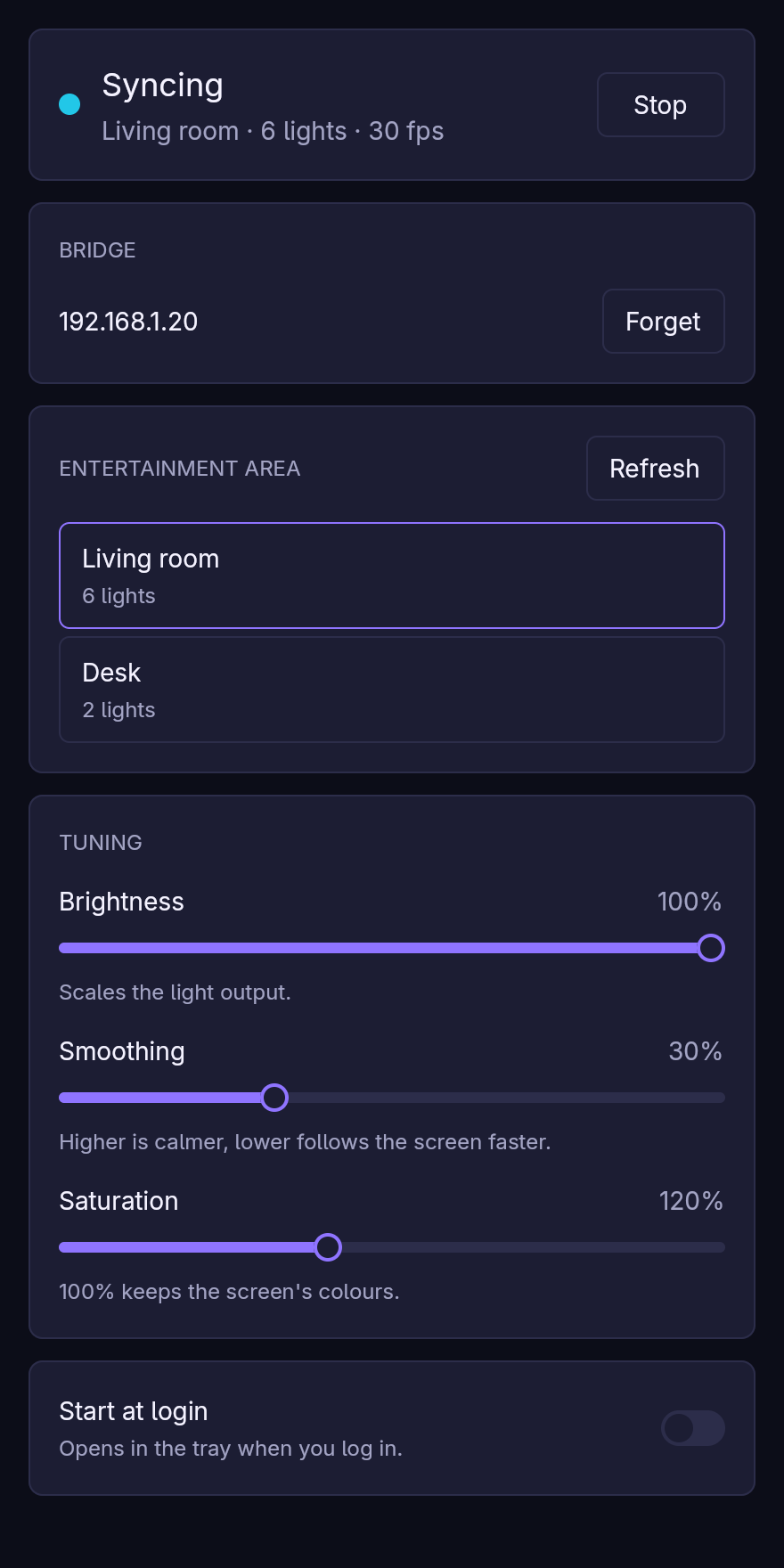
- A small window and a tray icon. Pair with the bridge, pick an entertainment area and start syncing; tune brightness, smoothing and saturation while it runs. The tray starts and stops syncing without opening anything.
- Made for Wayland. Screen capture goes through the desktop’s screen-cast portal and PipeWire, so it works on KDE Plasma, GNOME and wlroots compositors. You choose the screen once; lightmime remembers it.
- Headless if you like.
lightmime runsyncs without a window, for example as a systemd user service. - Home Assistant, optionally. Turn on MQTT and lightmime appears as a device with a sync switch, a status sensor and sliders, so a dashboard or an automation can start it. Without MQTT it never talks to anything but your bridge.
- Light on resources. Syncing at 30 fps takes about 1 % of one CPU core and 36 MB of memory; see Compared with other tools.
lightmime runs on Linux. Wayland is the main target; an X11 session works too, as long as its portal offers screen casting.
Start with the Quickstart.
What you need
- A Hue bridge (the square, second-generation one) with an entertainment area set up in the Hue app.
- A Linux desktop with PipeWire and
xdg-desktop-portalwith a backend that offers screen casting (xdg-desktop-portal-kde,-gnome,-wlr,-hyprlandand others). Most current desktops have both.
Licence
lightmime is free software, dual-licensed under MIT or Apache-2.0. It is not affiliated with Signify or Philips Hue.
Quickstart
-
Install lightmime. The Flatpak is the easiest way:
flatpak remote-add --user --if-not-exists flathub https://dl.flathub.org/repo/flathub.flatpakrepo
flatpak remote-add --user --if-not-exists lightmime https://lightmime.pataar.nl/flatpak/lightmime.flatpakrepo
flatpak install --user lightmime io.github.pataar.lightmime
Other ways are under Install.
-
Create an entertainment area in the Hue app if you have none yet: Settings → Entertainment areas. Place the lights roughly where they stand around your screen; lightmime uses those positions. See Entertainment areas.
-
Open lightmime from your app launcher, or run
flatpak run io.github.pataar.lightmime. -
Pair with the bridge. Press Find to look the bridge up, or type its IP address. Press Pair, then the round link button on top of the bridge within a minute.
-
Choose the area to sync to.
-
Press Start. The first time, your desktop asks which screen to share; pick the one the lights surround. The choice is remembered, so later starts are silent.
From then on, the tray icon starts and stops syncing. Closing the window keeps lightmime in the tray; quit from the tray menu. To have it ready after you log in, turn on Start at login.
Prefer a terminal? The same steps with the CLI:
lightmime pair --host 192.168.1.20   # then press the link button
lightmime areas                      # list the entertainment areas
lightmime use-area "Living room"
lightmime test                       # an 8-second colour sweep, to check the connection
lightmime run --start                # sync until Ctrl-C
With the Flatpak, run these as flatpak run io.github.pataar.lightmime pair --host … and so on.
Install
| Channel | How |
|---|---|
| Flatpak repository | flatpak install --user lightmime io.github.pataar.lightmime after adding the remote, see below |
| Flatpak bundle | lightmime-<arch>.flatpak from the latest release |
| Binary | lightmime-<arch>-unknown-linux-gnu.tar.xz from the latest release, see below |
| crates.io | cargo install --locked lightmime, see below |
| From source | cargo install --path crates/lightmime, see below |
Releases are built for x86_64 and aarch64.
Flatpak
lightmime has its own Flatpak repository, so it installs as a desktop app and flatpak update (or your software
centre) brings each new release. The Freedesktop runtime it needs comes from Flathub:
flatpak remote-add --user --if-not-exists flathub https://dl.flathub.org/repo/flathub.flatpakrepo
flatpak remote-add --user --if-not-exists lightmime https://lightmime.pataar.nl/flatpak/lightmime.flatpakrepo
flatpak install --user lightmime io.github.pataar.lightmime
flatpak run io.github.pataar.lightmime opens the window; with arguments it is the lightmime command, for example
flatpak run io.github.pataar.lightmime areas. A shell alias saves typing:
alias lightmime='flatpak run io.github.pataar.lightmime'
The Flatpak keeps its config in ~/.var/app/io.github.pataar.lightmime/config/lightmime/. It may use the network
(to reach the bridge and, if enabled, the MQTT broker), the display and the GPU. Screen capture needs no extra
permission: the desktop’s screen-cast portal asks you which screen to share.
A single release can also be installed from its bundle, without the repository. It does not update itself:
flatpak install --user lightmime-x86_64.flatpak
Binary
Each release has a tarball with the lightmime binary, the licences and the files from contrib/. The binary links
against your system’s libraries, so install these first:
| Distribution | Packages |
|---|---|
| Arch, CachyOS, Manjaro | gstreamer gst-plugins-base gst-plugin-pipewire openssl libxkbcommon-x11 |
| Fedora | gstreamer1 gstreamer1-plugins-base pipewire-gstreamer openssl libxkbcommon-x11 |
| Debian, Ubuntu | libgstreamer1.0-0 gstreamer1.0-plugins-base gstreamer1.0-pipewire libssl3 libxkbcommon-x11-0 |
tar -xJf lightmime-x86_64-unknown-linux-gnu.tar.xz
install -Dm755 lightmime-x86_64-unknown-linux-gnu/lightmime ~/.local/bin/lightmime
Then add the launcher entry and icons.
From source
You need a recent stable Rust (the version is pinned in rust-toolchain.toml; rustup picks it up) and the
development files of the libraries above:
| Distribution | Packages |
|---|---|
| Arch, CachyOS, Manjaro | base-devel gstreamer gst-plugins-base gst-plugin-pipewire openssl libxkbcommon-x11 wayland |
| Fedora | gcc pkgconf gstreamer1-devel gstreamer1-plugins-base-devel pipewire-gstreamer openssl-devel libxkbcommon-x11-devel wayland-devel fontconfig-devel |
| Debian, Ubuntu | build-essential pkg-config libgstreamer1.0-dev libgstreamer-plugins-base1.0-dev gstreamer1.0-pipewire libssl-dev libxkbcommon-x11-dev libwayland-dev libfontconfig-dev |
cargo install --locked lightmime
or from a checkout:
git clone https://github.com/pataar/lightmime
cd lightmime
cargo install --locked --path crates/lightmime
For a machine that only runs headless (no window or tray), leave the GUI out:
cargo install --locked lightmime --no-default-features
Desktop integration
The Flatpak brings its own launcher entry and icons. For a binary or source install, add them yourself so the app shows up in the launcher and the window and tray get their icons:
install -Dm644 contrib/io.github.pataar.lightmime.desktop ~/.local/share/applications/io.github.pataar.lightmime.desktop
cp -r assets/icons/hicolor ~/.local/share/icons/
Uninstall
flatpak uninstall --user io.github.pataar.lightmime   # Flatpak; add --delete-data to remove its config
rm ~/.local/bin/lightmime                             # binary or source install
Your settings stay in ~/.config/lightmime/ (or the Flatpak’s directory above). The app key lightmime registered on the bridge
stays there; it does no harm.
Bridge and areas
Pairing
lightmime needs an app key from the bridge, and for streaming a client key as well. The bridge hands both out once its link button has been pressed.
In the window, press Find to ask Signify’s discovery service (discovery.meethue.com) for the bridges on your
network, or type the bridge’s IP address; the Hue app shows it under Settings → Bridges → (your bridge). Press
Pair, then the link button on the bridge. lightmime keeps trying for a minute.
From the command line:
lightmime pair --host 192.168.1.20
The keys go into the config file, which is readable by you only. Forget in the window removes them there; the bridge keeps the registration, which does no harm.
Reusing Lumux’s pairing
If Lumux (installed as a Flatpak) is already paired, lightmime can copy its bridge address, keys and entertainment area instead:
lightmime import-lumux
This reads Lumux’s settings from ~/.var/app/io.github.enginkirmaci.lumux/, which the lightmime Flatpak cannot see.
Run it from a native install, or grant read access for the one command:
flatpak run --filesystem=~/.var/app/io.github.enginkirmaci.lumux/config/lumux:ro io.github.pataar.lightmime import-lumux
Entertainment areas
An entertainment area is a group of lights with a position each, set up in the Hue app under Settings → Entertainment areas. lightmime streams to one area at a time and uses each light’s position to decide which part of the screen it shows:
- left to right in the area is left to right on the screen;
- low to high in the area is bottom to top on the screen;
- front and back are ignored.
So a light strip behind the TV, split into segments, gets the colours along the edges of the picture, and a lamp to the left of the couch gets the left side. Place the lights in the Hue app as they really stand around the screen.
Choose the area in the window, or:
lightmime areas                # list them; * marks the current one
lightmime use-area "Living room"
lightmime areas also shows whether an area is active, meaning some app is streaming to it. Only one app can stream
to an area at a time; stop Hue Sync, Lumux or another lightmime first.
Checking the connection
lightmime test
runs a colour sweep over the lights for eight seconds without capturing the screen. If the lights cycle through the
rainbow, pairing, the area and the streaming connection all work. --seconds changes the duration.
Window and tray
lightmime gui opens the window and puts an icon in the tray. The app launcher entry and
flatpak run io.github.pataar.lightmime do the same.
The window follows your desktop’s light or dark style. From top to bottom:
- Status: whether lightmime is syncing, to which area, to how many lights and at what frame rate, and the Start/Stop button. After an error, the message shows here; Start tries again.
- Bridge: pairing, or the paired bridge and Forget.
- Entertainment area: the bridge’s areas; click one to sync to it. Switching areas while syncing restarts the sync on the new one. Refresh reloads the list after you change areas in the Hue app.
- Tuning: brightness, smoothing and saturation; see Tuning. Changes apply to the next frame and are saved.
- Start at login: starts lightmime in the tray (
lightmime gui --hidden) when you log in. Syncing waits for you, or for Home Assistant, unless you also turn on Start syncing at login (adds--start). The Flatpak asks the desktop for this through the Background portal; a native install writes~/.config/autostart/io.github.pataar.lightmime.desktop.
Tray
The tray icon’s menu shows the current state and has Start syncing or Stop syncing, Open lightmime and Quit. Clicking the icon opens the window.
Closing the window keeps lightmime running in the tray, so syncing carries on. Quit stops syncing, releases the area on the bridge and exits.
The tray uses the StatusNotifierItem protocol. KDE Plasma, Cinnamon, XFCE, Budgie, waybar and most other panels show it. Stock GNOME does not: install the AppIndicator and KStatusNotifierItem Support extension (Ubuntu ships it). Without a tray, closing the window quits lightmime.
Options
lightmime gui --hidden   # start in the tray only (ignored when there is no tray)
lightmime gui --start    # start syncing right away
If MQTT is enabled, the window process also runs the Home Assistant bridge, so there is no need
for a separate lightmime run next to it. Don’t run both: only one of them can stream to the area.
Tuning
Three settings change the look while syncing. Set them with the sliders in the window, from
Home Assistant, or in the [sync] section of the config file. Changes
take effect on the next frame and are saved.
| Setting | Range | Default | What it does |
|---|---|---|---|
| Brightness | 0–100 % | 100 % | Scales every light’s output. Lower it for a subtler glow in a dark room. |
| Smoothing | 0–95 % | 30 % | Blends each frame with the previous ones. Higher is calmer and hides flicker from fast cuts; lower follows the picture more tightly. |
| Saturation | 0–300 % | 120 % | 100 % keeps the screen’s colours. A little more makes lights look closer to the picture, because diffuse light on a wall washes colours out. 0 % gives white light that follows only the brightness. |
Two more settings are only in the config file:
| Setting | Range | Default | What it does |
|---|---|---|---|
fps | 1–60 | 30 | Frames per second sent to the bridge. The bridge passes on about 25 updates a second to Zigbee lights, so more rarely helps. |
region_size | 0.05–1.0 | 0.3 | How much of the screen each light averages, as a fraction of the width and height around its position. Smaller is more precise, larger is calmer. |
Tips
- For films, try smoothing at 40–60 % and saturation at 130–150 %. For games, smoothing at 10–20 %.
- A light that should show the far edge of the screen needs to sit at the edge of the area in the Hue app. Positions near the middle sample the middle of the screen.
- Letterboxed films have black bars at the top and bottom; lights placed high in the area sample those and stay dark. Lowering them a little in the area brings them into the picture.
Running in the background
lightmime run syncs without a window or tray. It waits for a command from Home Assistant, or
starts right away with --start, and stops on Ctrl-C or SIGTERM, releasing the area on the bridge.
lightmime run            # wait for Home Assistant (needs [mqtt] enabled)
lightmime run --start    # sync until stopped
It still captures the screen, so it has to run inside your graphical session: the screen-cast portal belongs to the session, and the first start shows its screen picker. After that the choice is remembered and later starts are silent, which is what makes running at login work.
For a tray icon at login rather than a headless service, use Start at login in the window instead.
As a systemd user service
The unit in contrib/lightmime.service
starts with your graphical session and restarts after a failure.
For a binary or source install in ~/.local/bin:
install -Dm644 contrib/lightmime.service ~/.config/systemd/user/lightmime.service
systemctl --user daemon-reload
systemctl --user enable --now lightmime
For the Flatpak, write the unit with the Flatpak’s command instead:
# ~/.config/systemd/user/lightmime.service
[Unit]
Description=lightmime: Hue screen sync
PartOf=graphical-session.target
After=graphical-session.target

[Service]
ExecStart=/usr/bin/flatpak run --command=lightmime io.github.pataar.lightmime run
Restart=on-failure
RestartSec=5

[Install]
WantedBy=graphical-session.target
Run lightmime run --start once by hand first, so you can answer the screen picker.
Follow the log with journalctl --user -u lightmime -f. Set Environment=RUST_LOG=debug in the [Service] section
for more detail.
Run either the service or the window, not both: only one of them can stream to the area.
Home Assistant
lightmime can show up in Home Assistant as a device, through MQTT discovery. This is optional and off by default; without it, lightmime talks only to your bridge.
Setup
You need an MQTT broker that Home Assistant uses, such as the Mosquitto add-on, and a user for lightmime on it. Add
an [mqtt] section to the config file:
[mqtt]
enabled = true
host = "homeassistant.local"
port = 1883
username = "lightmime"
password = "change-me"
For a broker with TLS, set port = 8883 and tls = true, plus ca_file if the broker uses a self-signed
certificate (see [mqtt]).
Then run either the window (lightmime gui) or the headless daemon (lightmime run).
Both connect to the broker. Home Assistant finds a device called lightmime (<hostname>).
Security
lightmime trusts the broker: anyone who can publish to lightmime/<node>/+/set can start and stop syncing and
move the sliders, and anyone who can subscribe can read the status, including error messages. MQTT never reaches
the bridge keys or anything else on the machine. To keep it that way:
- Give lightmime its own broker user and don’t allow anonymous clients (Mosquitto 2 refuses them by default).
- If the broker supports ACLs, limit that user to
lightmime/#andhomeassistant/#, and limit who else can write tolightmime/#. - Use TLS when the broker is reachable from anywhere but your own network; otherwise the password is sent in clear.
Entities
<node> is the machine’s hostname in lowercase, with anything but letters and digits replaced by _
(or node_id from the config). Two machines with the same <node> share entities and keep disconnecting each
other from the broker, so give each one its own node_id if their hostnames match. For the same reason, enable
MQTT in only one lightmime process per machine.
| Entity | What it does |
|---|---|
switch.lightmime_<node>_sync | Starts and stops syncing. |
sensor.lightmime_<node>_status | idle, starting, streaming or error. Its attributes hold the area, the number of lights and the error message. |
sensor.lightmime_<node>_fps | Frames per second sent to the bridge, updated every 10 seconds while syncing (diagnostic). |
number.lightmime_<node>_brightness | Brightness, 0–100 %. |
number.lightmime_<node>_smoothing | Smoothing, 0–95 %. |
number.lightmime_<node>_saturation | Saturation, 0–300 %. |
Slider changes from Home Assistant apply right away, show up in the window and are saved to the config file. The device becomes unavailable when lightmime stops.
Example: sync while the TV plays
automation:
  - alias: Sync the lights with the PC while it plays
    triggers:
      - trigger: state
        entity_id: media_player.living_room_pc
        to: playing
    actions:
      - action: switch.turn_on
        target:
          entity_id: switch.lightmime_htpc_sync
  - alias: Stop syncing when playback stops
    triggers:
      - trigger: state
        entity_id: media_player.living_room_pc
        from: playing
        for: "00:01:00"
    actions:
      - action: switch.turn_off
        target:
          entity_id: switch.lightmime_htpc_sync
Topics
For other MQTT clients: everything lives under <base_topic>/<node>/ (default lightmime/<hostname>/).
| Topic | Payload |
|---|---|
availability | online or offline (retained; offline is also the last will) |
sync/state, sync/set | ON or OFF |
status/state | idle, starting, streaming or error |
status/attributes | JSON: {"area": …, "channels": …, "error": …} |
fps/state | frames per second |
brightness/state, brightness/set (and smoothing, saturation) | percent |
Discovery configs go to <discovery_prefix>/<component>/lightmime_<node>/<key>/config. They are sent again when
lightmime reconnects and when Home Assistant reports online on <discovery_prefix>/status, so a Home Assistant
restart picks the device up again.
Configuration
lightmime keeps its settings in one TOML file. The window and the CLI write it for you; editing it by hand is only needed for the settings without a control, and for MQTT.
| Install | Config file |
|---|---|
| Native | ~/.config/lightmime/config.toml |
| Flatpak | ~/.var/app/io.github.pataar.lightmime/config/lightmime/config.toml |
--config <path> points any command at another file. The file holds the bridge keys and the MQTT password, so
lightmime writes it readable by you only (mode 0600). A missing file or key means the default.
Restart lightmime after editing the file by hand; the window and Home Assistant write their own changes into it. Those writes only touch the values that changed, so your comments, layout and any keys lightmime doesn’t know about stay as they are.
An annotated example is in
contrib/config.example.toml.
[bridge]
| Key | Default | Meaning |
|---|---|---|
host | The bridge’s IP address or hostname. | |
app_key | Application key from pairing. | |
client_key | 32 hex characters from pairing; the key for the encrypted stream. | |
entertainment_config_id | The area to sync to (set by lightmime use-area). |
[capture]
| Key | Default | Meaning |
|---|---|---|
source | "monitor" | What the screen picker offers: "monitor" or "window". |
width, height | 64, 36 | Frames are scaled down to this size before the colours are taken. More gives no visible gain. |
[sync]
| Key | Default | Range | Meaning |
|---|---|---|---|
fps | 30 | 1–60 | Frames per second sent to the bridge. |
brightness | 1.0 | 0.0–1.0 | Output brightness. |
smoothing | 0.3 | 0.0–0.95 | Smoothing between frames. |
saturation | 1.2 | 0.0–3.0 | Saturation; 1.0 keeps the screen’s colours. |
region_size | 0.3 | 0.05–1.0 | Part of the screen each light averages. |
Values outside the range are clamped. See Tuning.
[mqtt]
| Key | Default | Meaning |
|---|---|---|
enabled | false | Connect to the broker and appear in Home Assistant. |
host, port | "", 1883 | The broker. |
username, password | "" | Broker login, if it needs one. |
tls | false | Connect over TLS. Brokers usually listen for TLS on port 8883. |
ca_file | "" | PEM file with the CA that signed the broker’s certificate, for a self-signed broker. Empty trusts the system’s CAs. |
discovery_prefix | "homeassistant" | Home Assistant’s discovery prefix. |
base_topic | "lightmime" | First part of every topic. |
node_id | the hostname | Names this machine in topics, entity ids and the MQTT client id. Must be unique per machine on the broker. |
Other files
| What | Native | Flatpak |
|---|---|---|
| Which screen to capture (the portal’s restore token) | ~/.local/state/lightmime/restore_token | ~/.var/app/io.github.pataar.lightmime/.local/state/lightmime/restore_token |
Delete the restore token to be asked for the screen again.
CLI reference
lightmime [--config <path>] <command>
--config works with every command and defaults to ~/.config/lightmime/config.toml (see
Configuration). With the Flatpak, run commands as flatpak run io.github.pataar.lightmime <command>;
without a command, that opens the window. RUST_LOG sets the log level, for example RUST_LOG=debug.
lightmime gui
Open the window and tray icon. Runs the Home Assistant bridge too when MQTT is enabled.
| Option | |
|---|---|
--hidden | Start in the tray without opening the window. Ignored when there is no tray. |
--start | Start syncing right away. |
Not available in a build without the gui feature.
lightmime run
Sync without a window, controlled over MQTT when that is enabled. Stops on Ctrl-C or SIGTERM.
| Option | |
|---|---|
--start | Start syncing right away instead of waiting for Home Assistant. |
lightmime pair --host <address>
Pair with the bridge at <address>. Press the bridge’s link button within a minute.
lightmime import-lumux
Copy the bridge address, keys and entertainment area from Lumux’s settings. See Reusing Lumux’s pairing.
lightmime areas
List the bridge’s entertainment areas: id, name, number of lights and whether an app
is streaming to it. * marks the area lightmime uses.
lightmime use-area <area>
Sync to <area>, given by id or by name (case-insensitive).
lightmime test
Run a colour sweep over the area’s lights without capturing the screen, to check the connection.
| Option | |
|---|---|
--seconds <n> | How long to run; default 8. |
Troubleshooting
Start with the log. Run lightmime from a terminal (lightmime gui, or
flatpak run io.github.pataar.lightmime gui) and add RUST_LOG=debug for more. A service logs to
journalctl --user -u lightmime.
The lights do nothing
Run lightmime test. If the lights don’t cycle colours, the problem is between lightmime and the bridge:
- “not paired”: pair first, see Bridge and areas.
- “bridge refused start” or an area marked active: another app is streaming to the area. Stop Hue Sync, Lumux, a game console’s sync or another lightmime. After a crash the bridge releases the area by itself within about ten seconds.
- The DTLS handshake fails or times out: the bridge must be reachable on UDP port 2100. A firewall on the machine or a VPN that routes the LAN elsewhere can block it.
If the test works but syncing doesn’t, look at the screen capture.
The screen picker appears every time
The desktop forgot the choice, or its portal does not support restoring one. Choose the screen again; if it keeps
asking, check that xdg-desktop-portal and its backend are current. GNOME, KDE Plasma and xdg-desktop-portal-wlr
remember the choice.
“connecting to the ScreenCast portal” or “screen sharing was not allowed”
- No portal backend with screen casting is installed. Install the one for your desktop:
xdg-desktop-portal-kde,xdg-desktop-portal-gnome,xdg-desktop-portal-wlr(Sway, river),xdg-desktop-portal-hyprland. - You pressed Cancel in the picker. Press Start again.
- lightmime runs outside your graphical session, for example as a system service or over SSH. Run it as a user service in the session, see Running in the background.
“is gst-plugin-pipewire installed?”
The GStreamer PipeWire plugin is missing (native installs only; the Flatpak has it). Install gst-plugin-pipewire
(Arch), pipewire-gstreamer (Fedora) or gstreamer1.0-pipewire (Debian, Ubuntu).
The colours are off, or the wrong lights react
lightmime maps each light by its position in the entertainment area. Check the positions in the Hue app; see Entertainment areas. If the picture is right but the light is too pale or too nervous, see Tuning.
The lights lag or stutter
- Raise smoothing a little: very low smoothing passes on every jump of the picture.
- PipeWire only sends a new frame when the screen changes; a still picture sends none, which is expected.
- On a busy Wi-Fi network, put the machine or the bridge on a cable.
There is no tray icon
Your panel does not support StatusNotifierItem. On GNOME, install the AppIndicator extension; see Tray. Without a tray, closing the window quits lightmime.
The window shows the wrong font or no text
lightmime uses the first installed font out of Adwaita Sans, Cantarell, Noto Sans, Inter, Ubuntu, IBM Plex Sans, DejaVu Sans, Liberation Sans and Roboto. Installing any of them fixes it.
Reporting a bug
Open an issue on GitHub with the output of lightmime --version, your
distribution and desktop, and the log. Remove the bridge’s keys and your MQTT password from anything you paste.
How it works
lightmime is a pipeline of three stages, run every frame.
1. Capture
The XDG ScreenCast portal asks you which screen to share and hands lightmime a PipeWire stream of it, with a restore token so it can skip the question next time. GStreamer receives the stream and scales it down to 64 × 36 pixels of RGB:
pipewiresrc ! videoconvert ! videoscale ! video/x-raw,format=RGB,width=64,height=36 ! appsink
The portal is the only way to capture the screen on Wayland, and it works the same in a Flatpak, so lightmime needs no special permissions.
2. Mapping
Each light in the entertainment area has a position. Its left-right coordinate becomes
a horizontal position on the screen and its height a vertical one. lightmime averages the pixels in a square around
that point (region_size of the screen), in linear light so that bright and dark parts mix the way light does. Then
it applies saturation, smoothing and brightness.
3. Streaming
The bridge’s Entertainment API takes colours over an encrypted UDP stream:
- lightmime starts the area with a
PUTon/clip/v2/resource/entertainment_configuration/<id>. - It opens a DTLS 1.2 connection to UDP port 2100, authenticated with the client key from pairing
(
PSK-AES128-GCM-SHA256). - Every frame goes out as one
HueStreamv2 message: a header, the area’s id and, per light, its channel and a 16-bit red, green and blue value. - On stop, it ends the connection and stops the area, so the lights return to normal.
Code
The repository is a Cargo workspace:
| Crate | |
|---|---|
lightmime-core | Capture, colour mapping, the Hue API and streaming, and the Engine that runs them. No user interface. |
lightmime-gui | The window and tray icon, built with gpui. |
lightmime | The binary: the CLI, the headless daemon and the Home Assistant bridge. |
Your own frontend
lightmime-core can drive a frontend you write yourself. Create an Engine inside a tokio runtime, then call
start, stop, update_settings and set_bridge and watch subscribe() for its state. Pairing and area listing are
in lightmime_core::hue. The crate README
covers the details, and
examples/minimal.rs is a
complete frontend in one file.
See AGENTS.md for the architecture and protocol details.
Compared with other tools
Resource use
lightmime is one native binary with no interpreter, browser engine or web server. The compositor copies the screen into PipeWire at no more than 60 fps; lightmime drops frames above the sync rate and scales each one down to 64 × 36 pixels before converting it, so colour mapping only ever looks at 2,304 pixels a frame. See How it works.
Measured with lightmime run syncing a 3440 × 1440 desktop to a four-light area at 30 fps, with the
Home Assistant bridge on, on an AMD Ryzen 9 5900XT, over 60 seconds:
| CPU | about 0.9 % of one core (0.5 % user, 0.4 % system) |
| Memory | 36 MB resident, 26 MB proportional set size |
| Binary | 12.5 MB headless, 40 MB with the window and tray (stripped) |
To check it on your own machine while syncing:
pid=$(pgrep -x lightmime)
grep VmRSS /proc/$pid/status
top -p $pid
Lowering fps in Tuning lowers CPU use further.
Lumux and HyperHDR
Lumux and HyperHDR are the other open-source ways to sync Hue lights with a Linux screen.
| lightmime | Lumux | HyperHDR | |
|---|---|---|---|
| Written in | Rust | Python, GTK4 / libadwaita | C++ |
| Lights | Philips Hue | Philips Hue | Hue, LIFX, WLED, LED strips over serial or SPI, and more |
| Screen capture on Wayland | Portal + PipeWire | Portal | Portal + PipeWire, also USB HDMI grabbers |
| Interface | Window, tray icon, CLI | Window, tray icon | Web interface |
| Runs headless | Yes, also as a systemd user service | No | Yes, but PipeWire capture needs it to run as a user application, not a system service |
| Home Assistant | MQTT discovery | No | MQTT |
| Platforms | Linux | Linux | Linux, Windows, macOS |
| Install | Flatpak, binaries | Flathub, pip | Packages, binaries |
| Licence | MIT or Apache-2.0 | MIT | MIT |
Lumux is the closest in scope: a GTK desktop app for Hue entertainment areas on Wayland, on Flathub. It processes frames in Python; its README suggests lowering the capture resolution and frame rate if CPU use is high.
HyperHDR is an ambient-lighting server for many kinds of lights and capture sources, with HDR tone mapping, an LED layout editor and a web interface. If you drive LED strips, capture a TV through an HDMI grabber or need HDR handling, use HyperHDR; it does far more than lightmime.
lightmime does one thing: Hue sync from a Linux desktop, with little setup and as little overhead as possible.