Window and tray
lightmime gui opens the window and puts an icon in the tray. The app launcher entry and
flatpak run io.github.pataar.lightmime do the same.
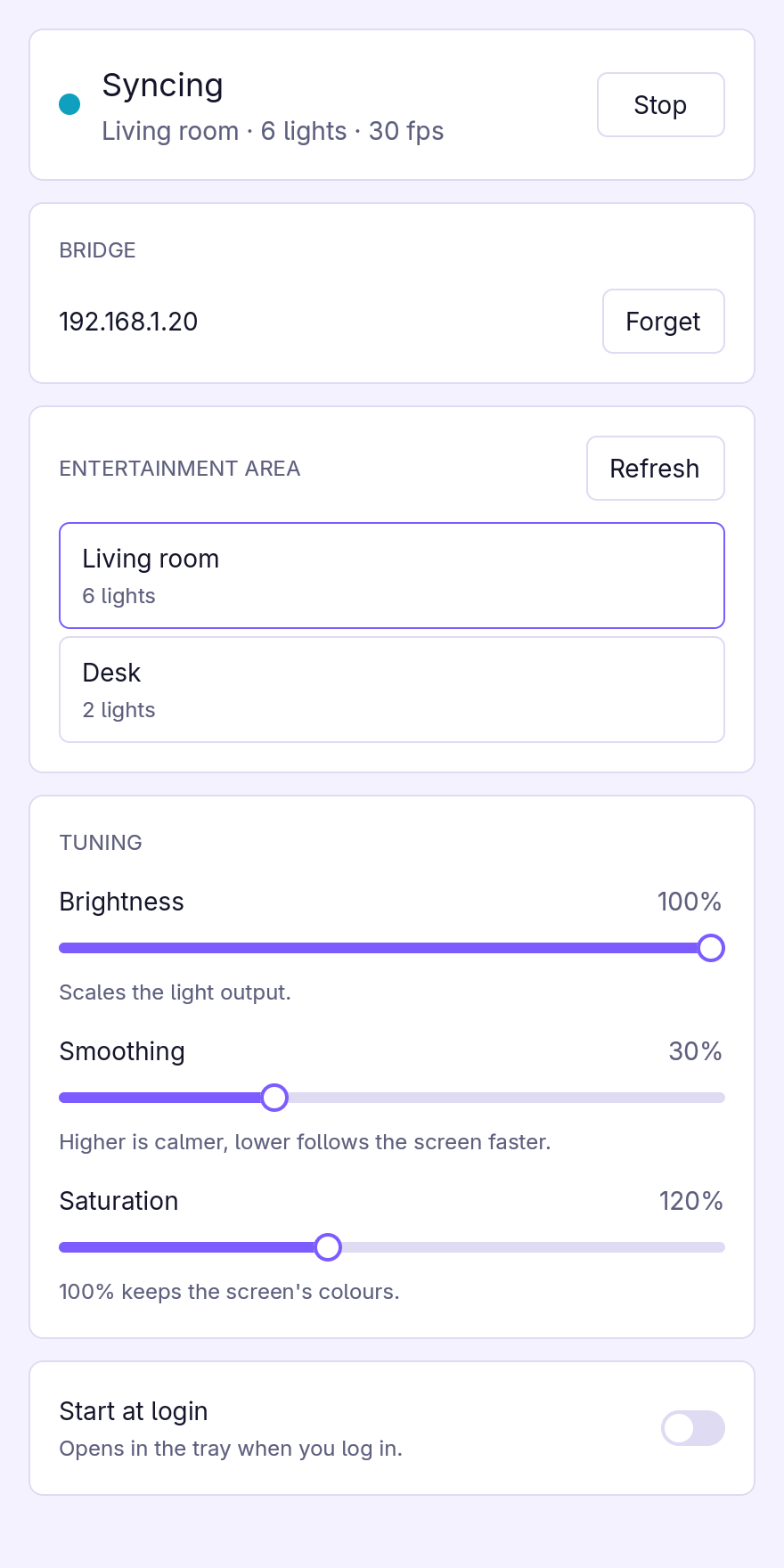
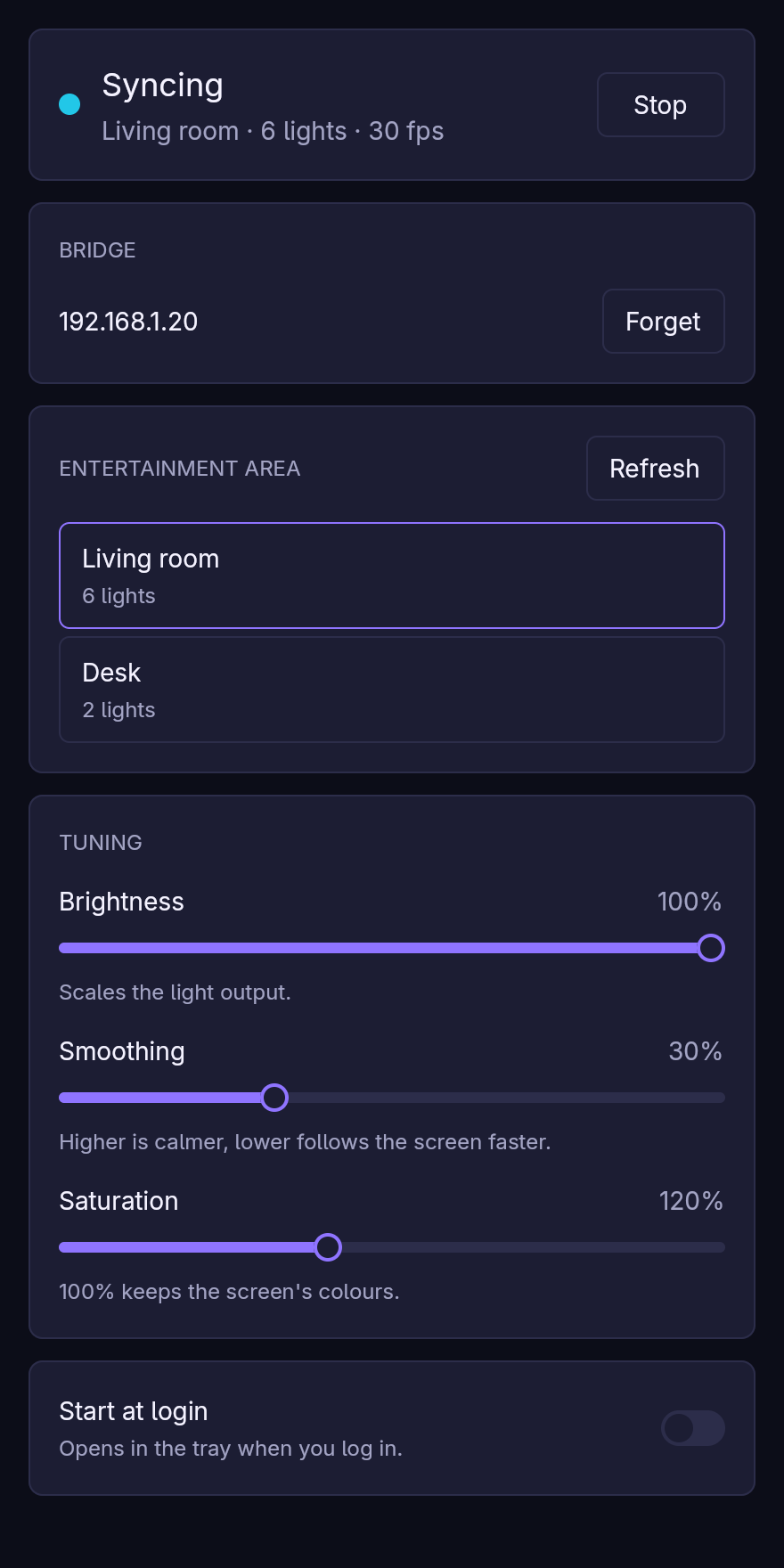
The window follows your desktop’s light or dark style. From top to bottom:
- Status: whether lightmime is syncing, to which area, to how many lights and at what frame rate, and the Start/Stop button. After an error, the message shows here; Start tries again.
- Bridge: pairing, or the paired bridge and Forget.
- Entertainment area: the bridge’s areas; click one to sync to it. Switching areas while syncing restarts the sync on the new one. Refresh reloads the list after you change areas in the Hue app.
- Tuning: brightness, smoothing and saturation; see Tuning. Changes apply to the next frame and are saved.
- Start at login: starts lightmime in the tray (
lightmime gui --hidden) when you log in. Syncing waits for you, or for Home Assistant, unless you also turn on Start syncing at login (adds--start). The Flatpak asks the desktop for this through the Background portal; a native install writes~/.config/autostart/io.github.pataar.lightmime.desktop.
Tray
The tray icon’s menu shows the current state and has Start syncing or Stop syncing, Open lightmime and Quit. Clicking the icon opens the window.
Closing the window keeps lightmime running in the tray, so syncing carries on. Quit stops syncing, releases the area on the bridge and exits.
The tray uses the StatusNotifierItem protocol. KDE Plasma, Cinnamon, XFCE, Budgie, waybar and most other panels show it. Stock GNOME does not: install the AppIndicator and KStatusNotifierItem Support extension (Ubuntu ships it). Without a tray, closing the window quits lightmime.
Options
lightmime gui --hidden   # start in the tray only (ignored when there is no tray)
lightmime gui --start    # start syncing right away
If MQTT is enabled, the window process also runs the Home Assistant bridge, so there is no need
for a separate lightmime run next to it. Don’t run both: only one of them can stream to the area.